Help / Your library
Quarantine: how removed copies are kept, restored and purged
When you clear out duplicate copies, Vesari Stylus never deletes them. Each one goes into a holding area called quarantine, inside your own music folder, where it stays untouched until you put it back or clear it out for good.
Think of it as a recycle bin that lives with your music rather than the app, which matters most on a network drive, where Windows offers none. Everything moved in one cleanup forms a batch, and the batch is what you restore or delete later.
Where the quarantined files go
Quarantined files stay on the same drive as the music they came from. Inside the music folder you added, the app creates .aj-quarantine, then a folder for the batch, then the folder path the file already had.
A track at:
D:\Music\Rock\Loveless\01 Only Shallow.flac
lands at:
D:\Music\.aj-quarantine\<batch>\Rock\Loveless\01 Only Shallow.flac
Because the move stays on one volume it is a rename, not a copy, so even a large cleanup over a NAS is quick and never rewrites your audio. Library scans and the folder watcher both skip .aj-quarantine, so quarantined files are never re-indexed or flagged as duplicates again.
What moves and what stays
The copy you keep is not touched. The file move happens first, so if it fails, because the file is open or the share is read-only, the copy, its library entry and its history are left as they were. Once the move succeeds, the removed copy's play history, star rating and playlist places are merged onto the copy you kept, so no listening data is lost.
Sending copies to quarantine
This is the last step of the duplicate review in Library Health & finding duplicates. The window carries a beta label, and a banner under the title repeats that copies are moved to quarantine rather than deleted.
- Open Library Health and find the Duplicate tracks card.
- Press Review duplicates.
- Nothing is ticked for you, so tick only the copies you want moved. The copy marked KEEP is the one the app picked, ranked on channel count first, then bit depth, sample rate and whether the format is lossless. A group can hold more than one keeper, so read the specs under each name first. Select all shown ticks every removable copy on screen if you prefer bulk.
- Press Move N copies to quarantine, then confirm with Move to quarantine.
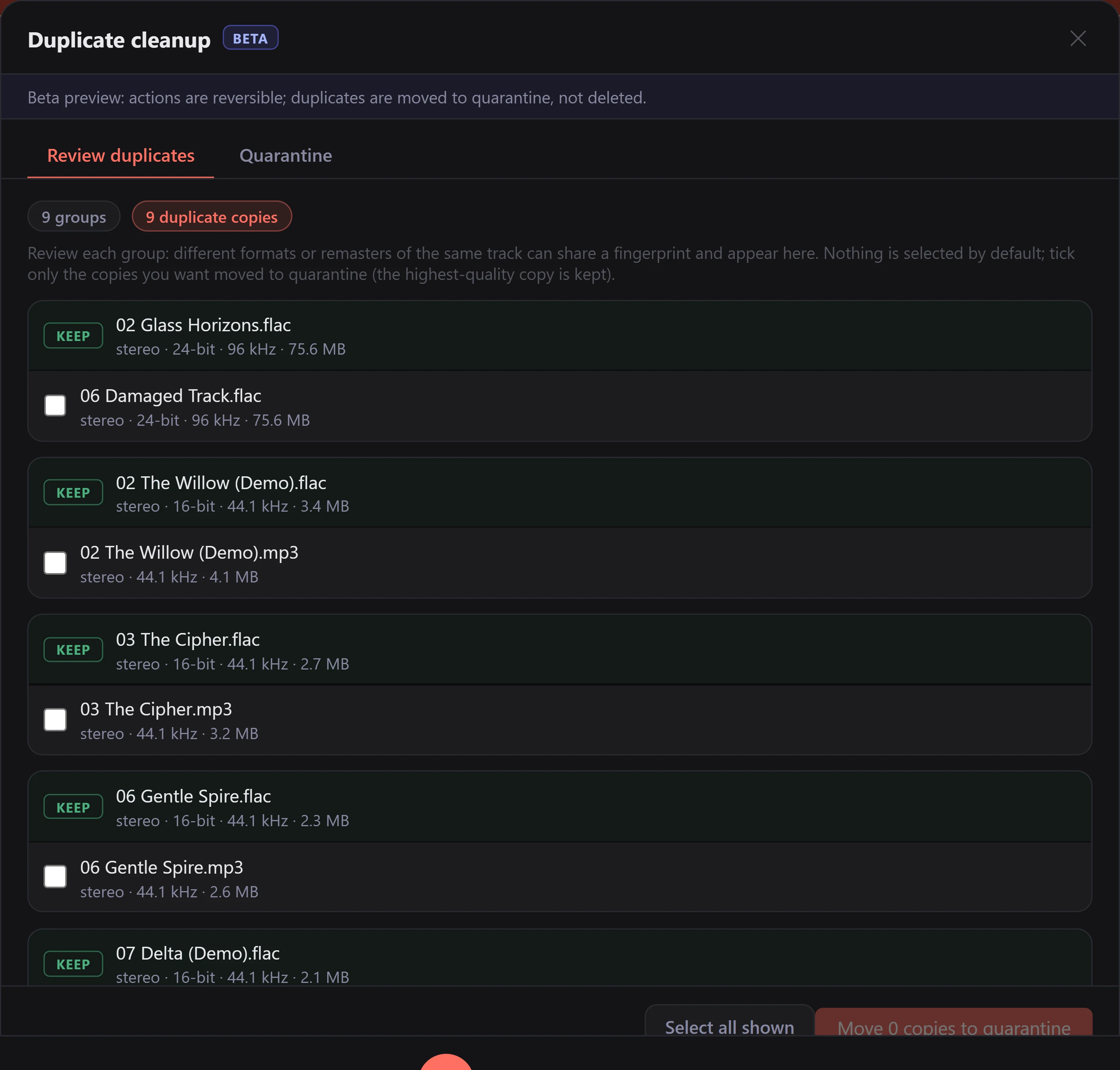
The window closes and the batch runs in the background, with a progress strip you can Cancel at any point. Cancelling stops after the file in flight, and everything already moved stays in quarantine, restorable. If the library is still analysing, applying is paused until it finishes.
Flagging duplicates and browsing them is free for everyone. Moving copies to quarantine is one of the paid library tools: a trial can move up to 250 copies in total, and Pro and Lifetime are uncapped.
Restoring a batch
Open the same window and switch to the Quarantine tab. Each batch shows how many copies it holds, how much space they take and when they moved.
Press Restore and the files in that batch go back to the paths they came from, then are re-indexed into your library. The tab then says how many went back and how many were not restored, with the reason for up to a hundred of them behind Show reasons. If something else has since taken that path, the file lands beside it with (restored) added to the name rather than overwriting anything. The history merged onto the copy you kept stays there, so a restore hands the file back without unpicking your stats.
Restore works a whole batch at a time. To bring back a single file, move it yourself: I moved duplicates to quarantine and cannot find the files shows how.
Purging for good
Press Purge on a batch and confirm Delete permanently. This is the only step in the cleanup that deletes anything, and on a network share with no recycle bin it cannot be undone.
Purge with the drive or share connected. If another program has a file open and blocks the delete, that file is not deleted and its batch stays on the list, so you can close that program and press Purge again. A file on a drive or share that cannot be reached is not deleted, and its batch stays on the list until you reconnect and press Purge again. After a purge the tab says how many copies it deleted, how many were already gone, and how many it kept, with the reason for up to a hundred of the kept copies behind Show reasons and the rest counted. The log accounts for every one of them, and reports copies on a drive or share that did not answer once for the batch rather than one by one; Reading the logs shows you how to open it.
The app cannot tell a renamed, moved or deleted music folder from a drive that is not connected, nor tell an .aj-quarantine folder you deleted by hand apart from the empty folder a share can serve while its disk is not mounted, so those batches stay listed too. If you renamed or moved the folder and have not added it to the library at its new name or place, put it back and press Purge again. If you deleted it, the quarantined copies went with it. On a local drive the folder may still be in the Recycle Bin: restore it from there, then Restore or Purge the batch as usual. Otherwise, clear the entry with Remove from list, below.
If the music folder is now in your library under a different path, because you renamed or moved it and added it again, or because its drive or share has a different drive letter or network name and you added it under that, do not put it back. The next time you open the Quarantine tab, the batch counts each file twice, once at each path. Press Remove from list on it: the copies at the new path answer, so they stay listed, and the copies listed at the old path go. Then Restore or Purge the batch as usual. That works while the old path no longer reaches the files. If it still does, as a mapped drive letter and the share's network name both can, the files answer at both paths and both halves stay listed. If the drive or share has a different letter or name and you have not added the folder under it, Restore and Purge work on the batch again once it is back under its old name.
Removing a batch from the list
Remove from list clears from the Quarantine tab the copies in a batch that the app cannot reach, without deleting or moving any files. Use it mainly for a batch that Restore and Purge cannot reach: its drive or share is gone for good, the music folder it was in was deleted, or its .aj-quarantine folder was deleted by hand.
Press Remove from list on the batch, then confirm with Remove from list. Like Purge, it is available once the tab has finished checking the quarantine folders. The Quarantine tab is inside the duplicate review window, and I moved duplicates to quarantine and cannot find the files says when that window can be opened.
Copies whose files the app can reach right now stay listed, so you can restore or purge them, and the tab says how many stayed. Everything else in the batch leaves the list, including copies on a drive or share that is only disconnected. If it could not check some of the copies it took off the list, the tab says how many: their files may still exist somewhere the app cannot reach. If a copy cannot be taken off the list, it stays listed, and the tab says how many and that the log says why. The files themselves are not touched: any that still exist stay where they are. If they are still, or again, in the batch's folder in the .aj-quarantine folder at the top of one of your music folders, the batch comes back the next time you open the Quarantine tab while the app can reach them, and can be restored. Files you move back into your music folders yourself are ordinary library tracks again after a scan.
A drive or share that is only disconnected does not need this: reconnect it and press Purge or Restore. If you remove its batch anyway, the batch is listed again once the drive or share is back under its old name and you open the tab, as long as that folder is still one of your music folders.
What survives what
Quarantined audio lives in your music folder, not in the app's own data folder, so reinstalling Vesari Stylus leaves it alone. The list of batches lives with your library data. If that data is ever cleared, the audio is still in .aj-quarantine. Add each music folder back (each keeps its own .aj-quarantine at its top) and the next time you open the Quarantine tab the app rebuilds the list from that folder, so you can restore a batch as usual. That tab opens from a Review duplicates button, which is not always shown: I moved duplicates to quarantine and cannot find the files says when. Because the layout mirrors your original folders, you can also move the files back by hand.
Copies the cleanup leaves alone
A flagged copy is sometimes left alone on purpose: the kept copy may not be a close enough match, the copy may be one track inside a CUE sheet rather than a standalone file, or its identity may still be settling. Why do I see two different "duplicate" numbers? covers that. One more case is a filename that is legal on a NAS but not on Windows, such as one with a colon or ending in a dot. Those can be neither moved nor restored, so the app skips them whole and tells you why.
If a cleanup reports failures you cannot explain, use the in-app option to report a problem and quote what it said. See Is this a bug? How to report it.